End-user guide
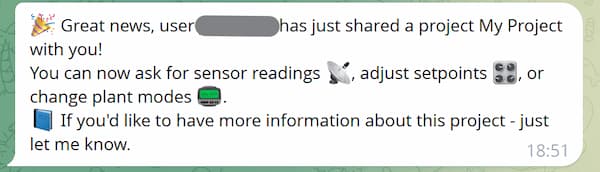
When a project is shared with you, you will receive a notification in the chat bot.
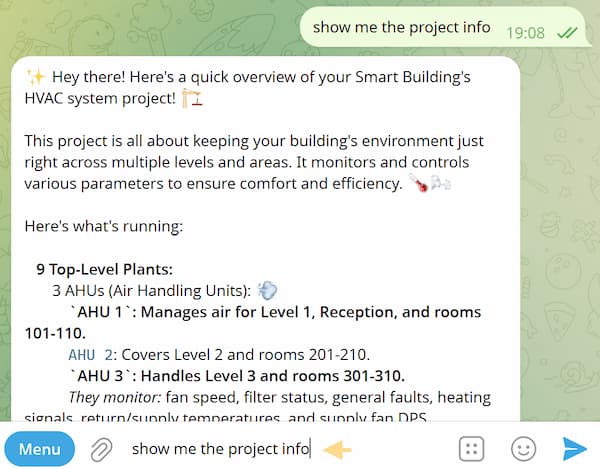
To get familiar with the project structure, simply ask for the project info:
Using the menu
You can use the menu to set new values and check the current status.
To open the main menu, tap the menu icon on the right side of the message input field.

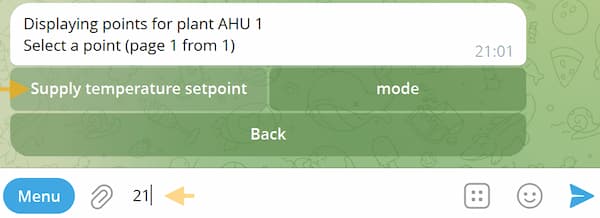
For example, to set a new value, select Set value, choose your project, and then select the system or location.
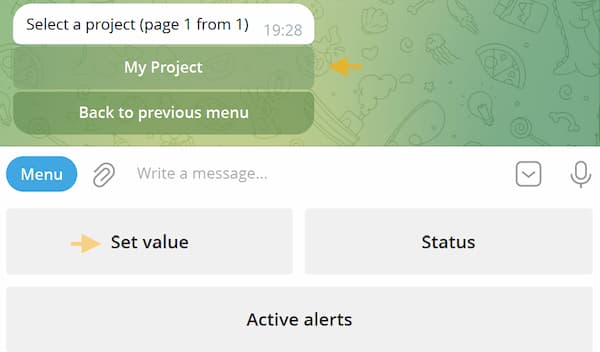
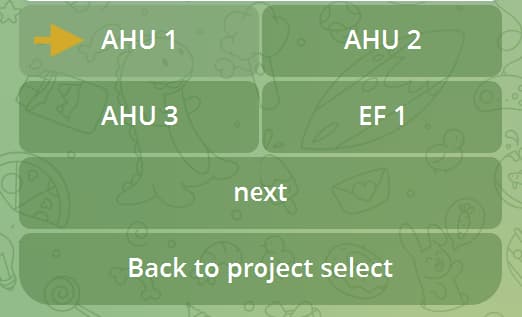
If your system does not appear, use the Next button to go through the full list.
After selecting a point, enter the new value.
Notifications
Notifications are sent to you automatically once an event is triggered.
All notifications are set up by the Administrator account. If you need any changes, please contact your project administrator (the person who shared the project with you).
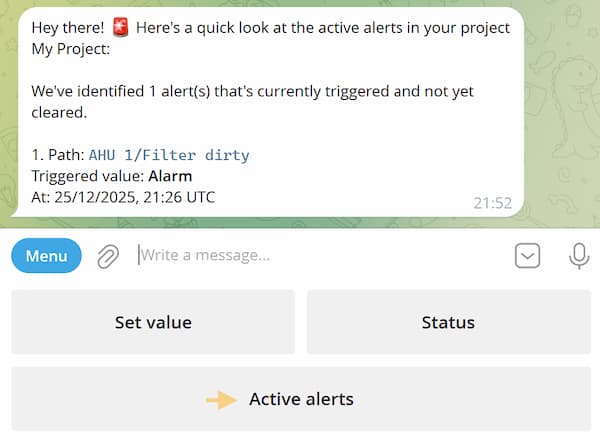
To view active notifications, tap Active alerts in the main menu or simply ask the bot using a text message.
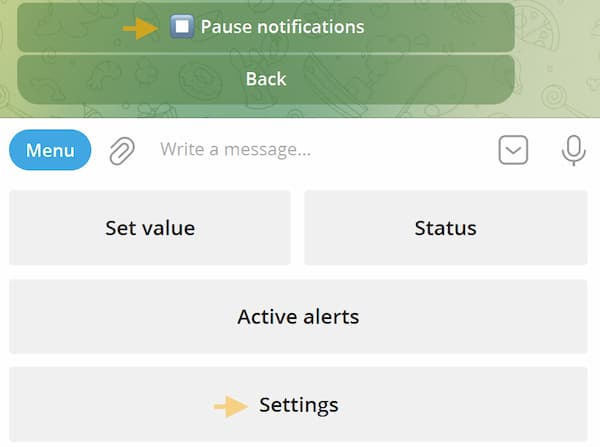
You can pause notifications in Settings → Projects → Project list → Your project.
AI
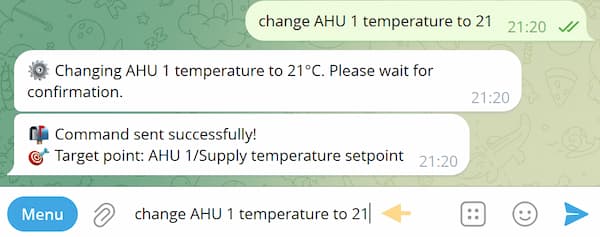
As an alternative to using the menu, you can type commands in plain language. The AI will understand your request and perform the action for you.
Currently, the AI understands the following commands:
- Show project info
- Show plant info (for example: Show me AHU1 info)
- Show the list of pre-set notifications
- Show active alarms
- Show a point value or status (for example: What’s the supply temperature of AHU1?, Is AHU1 running?)
- Change a point value (for example: Switch on AHU1, Set the AHU1 setpoint to 21)
Although the bot understands natural language, AI functionality is limited to supported intents. We continuously expand these capabilities and will notify you as new features become available.